One shortcut. Capture, mark up, copy, continue.
A screenshot tool that lives in the macOS menu bar and the Windows notification area, written in Rust against each platform’s native APIs. No Electron, no account, no uploads.
macOS 13 or later (Intel and Apple silicon) · Windows 10/11 (x64) · free and open source
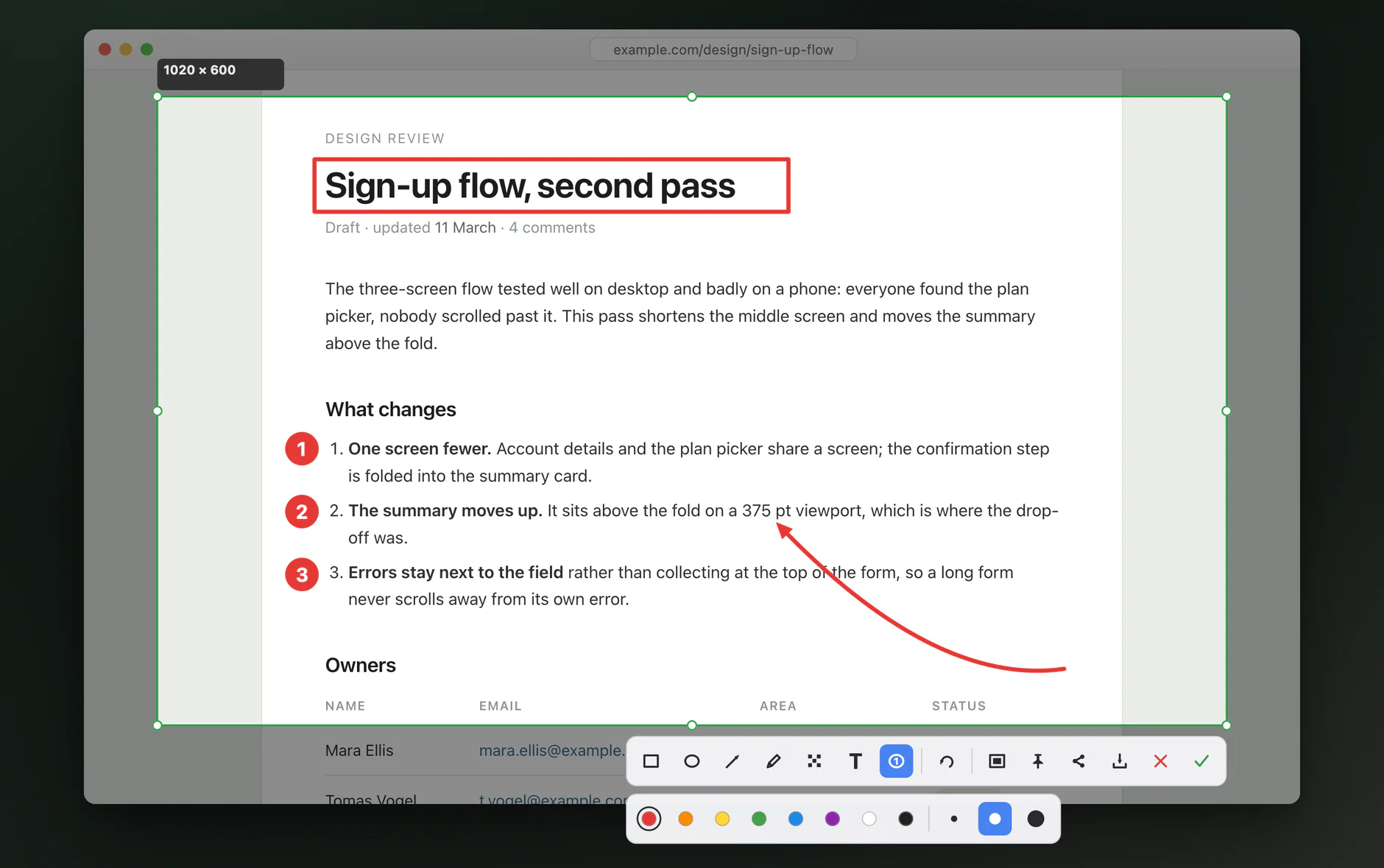
What it does
The screen freezes the moment you press the shortcut, so nothing moves while you frame the shot.
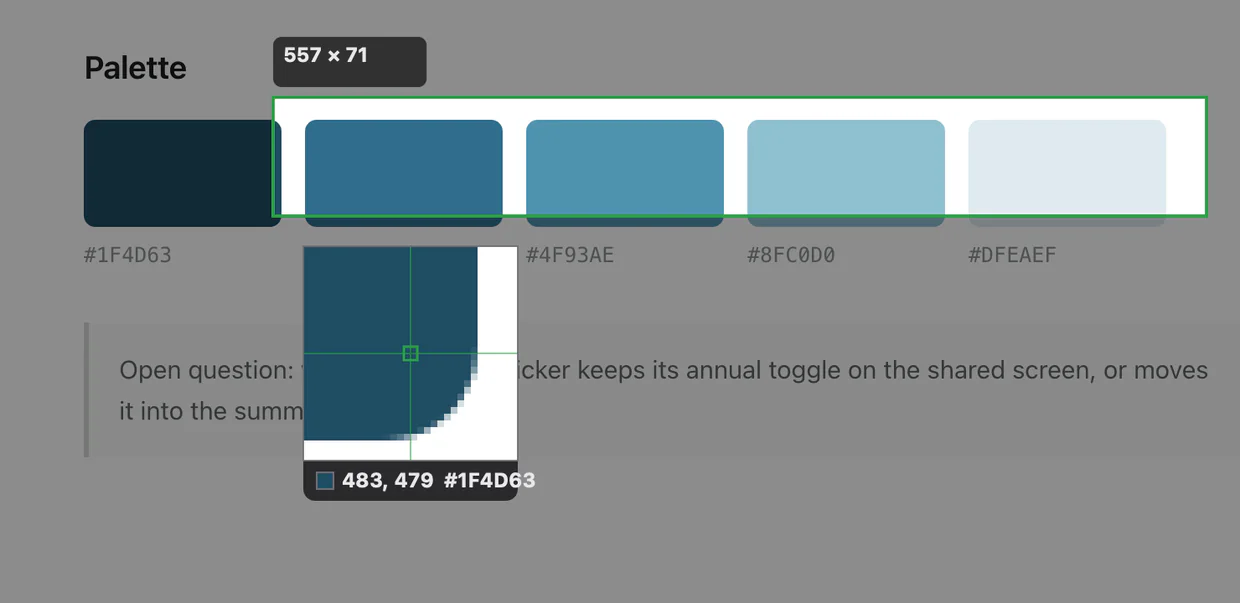
Pixel-exact edges
A magnifier follows the pointer, showing the exact pixel under the crosshair with its position and colour.
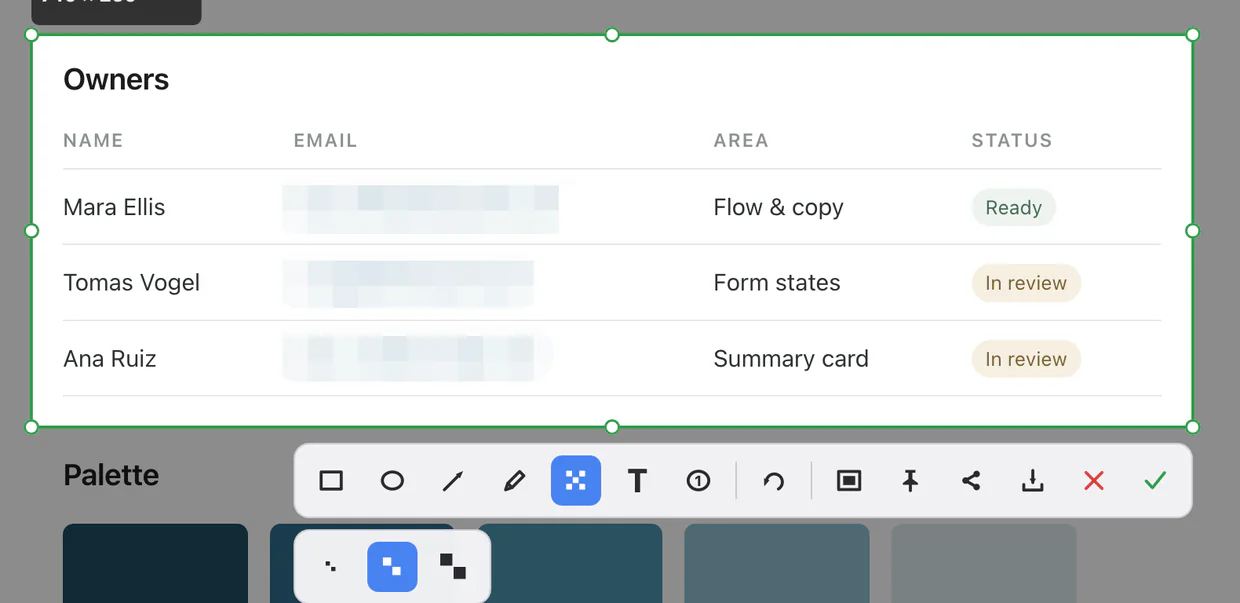
Blur out sensitive information
The mosaic brush pixelates whatever you paint over, in the saved image and not just on screen.
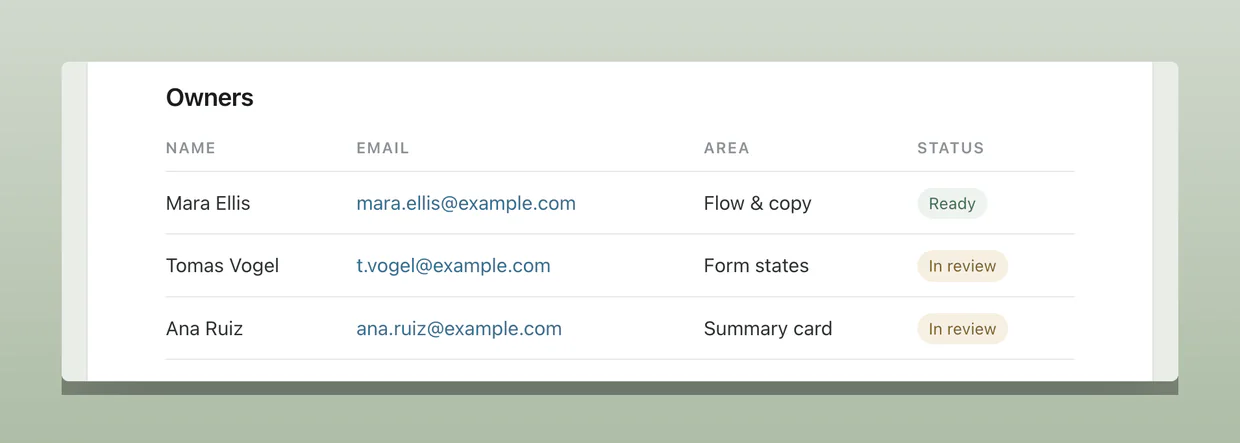
Put it on a backdrop
Export with padding, a rounded corner and a soft shadow. The background colour is taken from the capture itself.
Mark it up
Rectangle, ellipse, arrow, pen, mosaic and text. Shapes stay editable after you draw them, with undo and redo throughout. Numbered markers count up on their own.
Pin it to the screen
Keep a capture floating on top while you work. Drag it anywhere, scroll to zoom, and close it with the ✕ in its corner.
Snap to a window
Hover any window and it is offered whole, cropped to its edges. One click takes it.
Send to a phone
Optional, and off until you turn it on. Scan the QR code and the screenshot opens on your phone over your own local network.
19 languages
The interface follows your system language, or you can pick one in settings.
Your own shortcut
Record any combination in settings. If another application already has it, LiteCap says so instead of taking it.
Out of the way
Start LiteCap when you log in, and hide the status icon if the shortcut is all you want.
Updates itself
LiteCap looks for a new version now and then and says so in the menu when there is one. It installs nothing until you pick it, and you can turn the looking off in Settings.
| Key | What happens |
|---|---|
| ⌃⌥A / Ctrl+Alt+A | Freeze the screen and start a selection |
| hover a window | The whole window is offered, ready to be taken with one click |
| Return / Enter ⌘C / Ctrl+C | Copy to the clipboard and close |
| ⌘S / Ctrl+S | Copy and open “Save as” |
| ⌘Z / Ctrl+Z | Undo — add Shift to redo |
| ⌘P / Ctrl+P | Pin the selection to the screen |
| arrow keys | Move the selection one pixel. Hold ⌘ / Ctrl to push an edge out, Shift to pull it in |
| C | Copy the colour and end the capture. Shift+C switches between hex and RGB |
| Esc / ✕ | Cancel. Nothing is copied, nothing is written |
Download
Your system will warn you the first time. Here is why.
LiteCap is not code-signed yet — a signing certificate is a yearly fee this project has not taken on. Nothing is wrong with the download; your operating system simply cannot tell who built it.
macOS: the first launch is refused. Open System Settings → Privacy & Security, scroll to the bottom, and press Open Anyway. Once only.
Windows: SmartScreen shows a blue dialog. Click More info → Run anyway. The first time you use “send to a device”, Windows will also ask whether to allow it through the firewall — that is the local server described below.
You can verify what you downloaded against the checksums in the macOS manifest or the Windows manifest.
Privacy
LiteCap reaches the network in two places: the update check, and “Send to a device” if you turn it on.
- No uploads
- Screenshots stay on your machine: nothing is uploaded to a server, nothing is relayed. A local delivery goes straight from your computer to your other device and leaves no copy anywhere.
- No collection
- No telemetry, no analytics, no crash reporting, no identifier. An update check is a GET of a small signed text file; like any HTTP client it sends the version that is asking, and nothing else — nothing about you and nothing about how you use LiteCap.
- No history is kept
- A capture lives in memory long enough to be encoded onto the clipboard, then its buffer is zeroed and freed.
- Nothing written to disk
- Unless you pick a path in “Save as” yourself. No auto-save folder, no cache, no history.
- No admin rights
- On Windows it needs no administrator rights and installs for your account alone. On macOS it asks for exactly one permission — Screen Recording, without which no screenshot tool can work — and deliberately not Accessibility.
- Two network calls
- “Check for Updates” in the menu, and a check of its own once a day — a GET of a small signed text file, which installs nothing unless you choose to and which Settings can switch off. The other is “Send to a device”, which exists only once you enable it. Beyond those two, LiteCap does not go online.
One caveat: a local delivery travels unencrypted on your own network. LiteCap says so in the panel itself, every time you use it.
All of the above is the program. The site itself counts visits with Cloudflare Web Analytics — no cookie, no browser fingerprint, no tracking across sites; what it leaves behind is an aggregate count of page views, referrers and countries. Which is why this page has no cookie banner to dismiss.